You're almost done. This final step takes about five minutes and can be completed entirely in the browser. MT5 on the desktop is optional.
Important: pick the link that matches your account type
There are three separate subscriptions — Funded Scaled, Funded Classic, and Standard. Each has its own connection link. Use the one that matches your account type; a link for the wrong type cannot be connected and will return an error.
What to have ready
Your MT5 account number (from the welcome email from TegasFX)
Your MT5 password (from the same email)
The connection link your Algovaro contact sent you
Note: this tutorial assumes you already have a verified TegasFX account plus an active funded account. If not yet: first go through the setup tutorial.
1
Enter your credentials
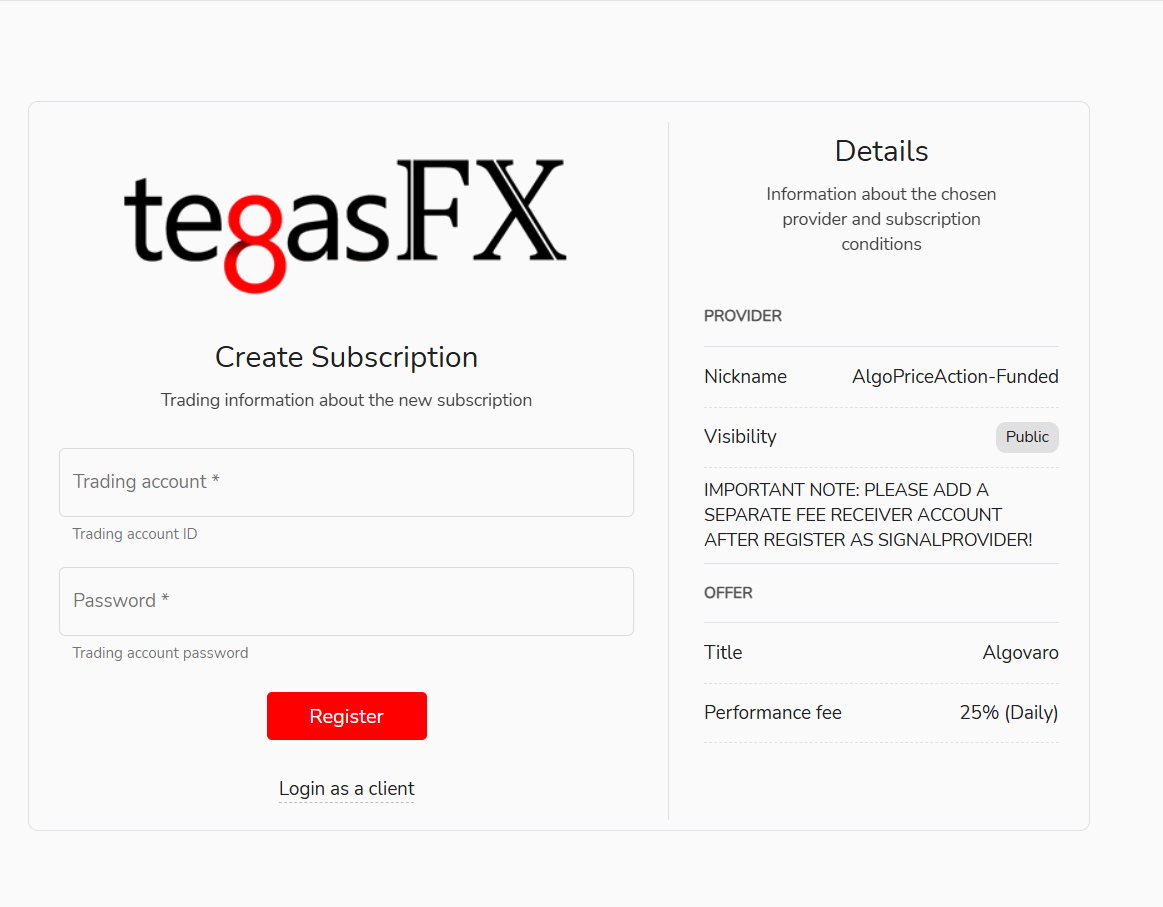
Open the connection link that matches your account type (or the link your Algovaro contact sent you). You'll land on the Create Subscription page at TegasFX.
Not sure which type you have? Funded Scaled, Funded Classic, and Standard are three separate subscriptions — if a link returns an error, it's the wrong type. Message your Algovaro contact and they'll send you the right one.
Create Subscription at TegasFX: enter trading account number and password. On the right, the details overview of the connected provider (nickname, title Algovaro, performance fee 25%).
Fill in the two fields:
Trading account — your MT5 account number
Password — your MT5 password
On the right you see the details of the system you're connecting to — nickname, title "Algovaro", performance fee 25%. If everything looks right, click Register.
Tip: copy the password directly from the TegasFX email rather than typing it — that way typos are ruled out.
2
Confirm the notice
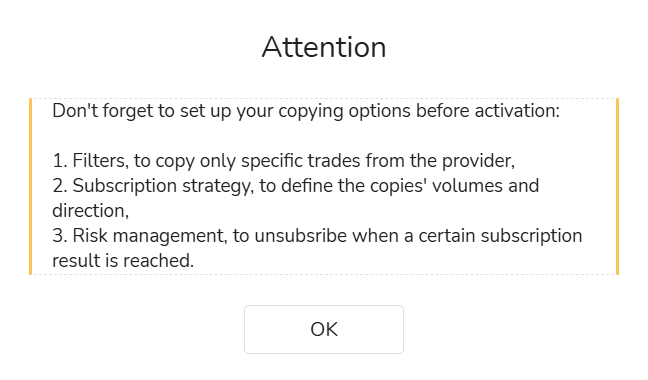
After clicking Register, an Attention dialog appears, reminding you that before activation you can configure three areas: Filters (which trades from the provider get copied), Subscription strategy (volumes and direction of the copies), and Risk management (automatic unsubscription on certain outcomes).
The Attention notice before activation. Important to know: these three settings are optional — the defaults match our calibration.
Confirm with OK. You'll then land on the profile page of your new subscription. We'll verify in the next step that the defaults are correct — in most cases you don't need to change anything here.
3
Check the settings and activate
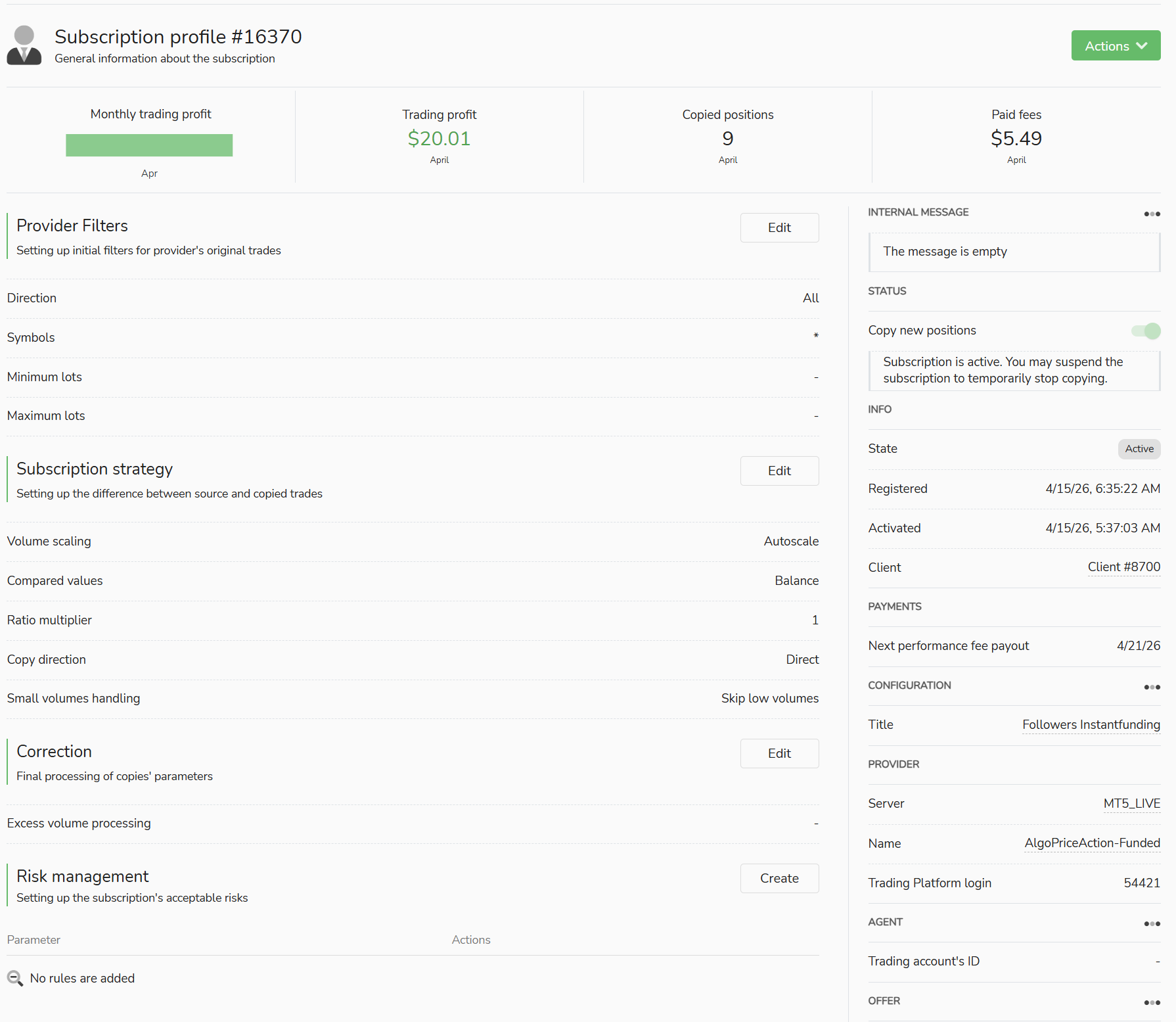
You now see the Subscription profile with all settings that affect your account. The defaults are deliberately set to match our calibration — you don't need to adjust anything.
Subscription Profile with default values — Provider Filters, Subscription strategy, Risk management. Activation via Actions at the top right.
Click Actions at the top right, then Activate. That arms the connection.
In the right sidebar under Status, Copy new positions should now be green and the message "Subscription is active" should appear. Under Info, State: Active is shown. If those are visible, everything is running.
Optional: additional risk brake
The profile page has a Risk management section. There you can configure automatic actions from a certain drawdown value — for example: close all positions automatically when floating loss exceeds X dollars.
For most customers, this is not necessary. Our team monitors the master account actively, and the standard calibration is set conservatively on purpose. An additional brake can trigger unintentionally during normal temporary drawdown phases and cut off gains that would have recovered afterwards.
The risk brake makes sense if you actively increase the ratio multiplier or want to run more aggressively for other reasons — that is, for experienced traders with their own risk strategy. If you're considering it: have a brief word with your Algovaro contact before setting a value.
What you'll see now
As soon as the master account opens a trade, the position is copied to your account immediately — typically in the millisecond range, always under one second. The trade mirroring itself isn't what you're waiting for.
What can take longer: until the system recognizes the next matching trade setup. AlgoPriceAction trades on average 1–2 trades per week — there can be weeks with multiple trades, but also weeks without a single trade. The fact that "nothing happens" initially is not an error.
In the Subscription profile, the Copied positions counter increments as soon as the first position is mirrored. In parallel, you also see the trades directly in your TegasFX dashboard and — if desired — in MT5.
You're done — what happens now
Your account is connected, the system runs automatically from here. You don't need to do anything more — trades are mirrored without further intervention.
For questions or uncertainties: a quick email to your Algovaro contact. They help directly — you reach a real person, not a ticketing system.
If something gets stuck
The two most common stumbling blocks:
"Login failed" or similar error — almost always wrong password copy. Take the MT5 credentials directly from the TegasFX email, don't type them.
No matching offer / wrong account type — usually a standard link applied to a funded account (or vice versa). Message your Algovaro contact, they'll send you the right link.
For anything else: a quick email to your Algovaro contact. They'll help directly, and can escalate to TegasFX support if needed.
Optional: set up MT5 on the desktop
If you want to follow your trades on the desktop too, you can additionally install the MetaTrader 5 software. For the system to function, that's not necessary — the TegasFX dashboard in the browser is fully sufficient.
Quick guide:
Download MT5 from the official MetaQuotes website or directly via the link in your TegasFX email
When logging in, enter your MT5 account number and password
Select the server from the list — shown in the TegasFX email (typically MT5_LIVE or similar)
After login, you see the same trades the system mirrors onto your account — in real time, with detailed chart view.